
To message an individual customer with our system you first need to have Service Desk enabled - this feature is included in your subscription! To enable it, just reach out to your account manager to have them set it up for you.
To see more info about service desk, check out our What is Service Desk? article!
Go to Service Desk
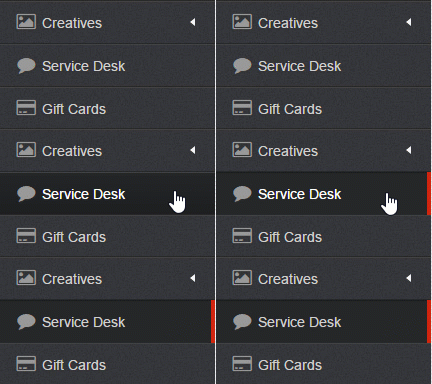
Click New SMS Conversation on top left, or choose an existing conversation
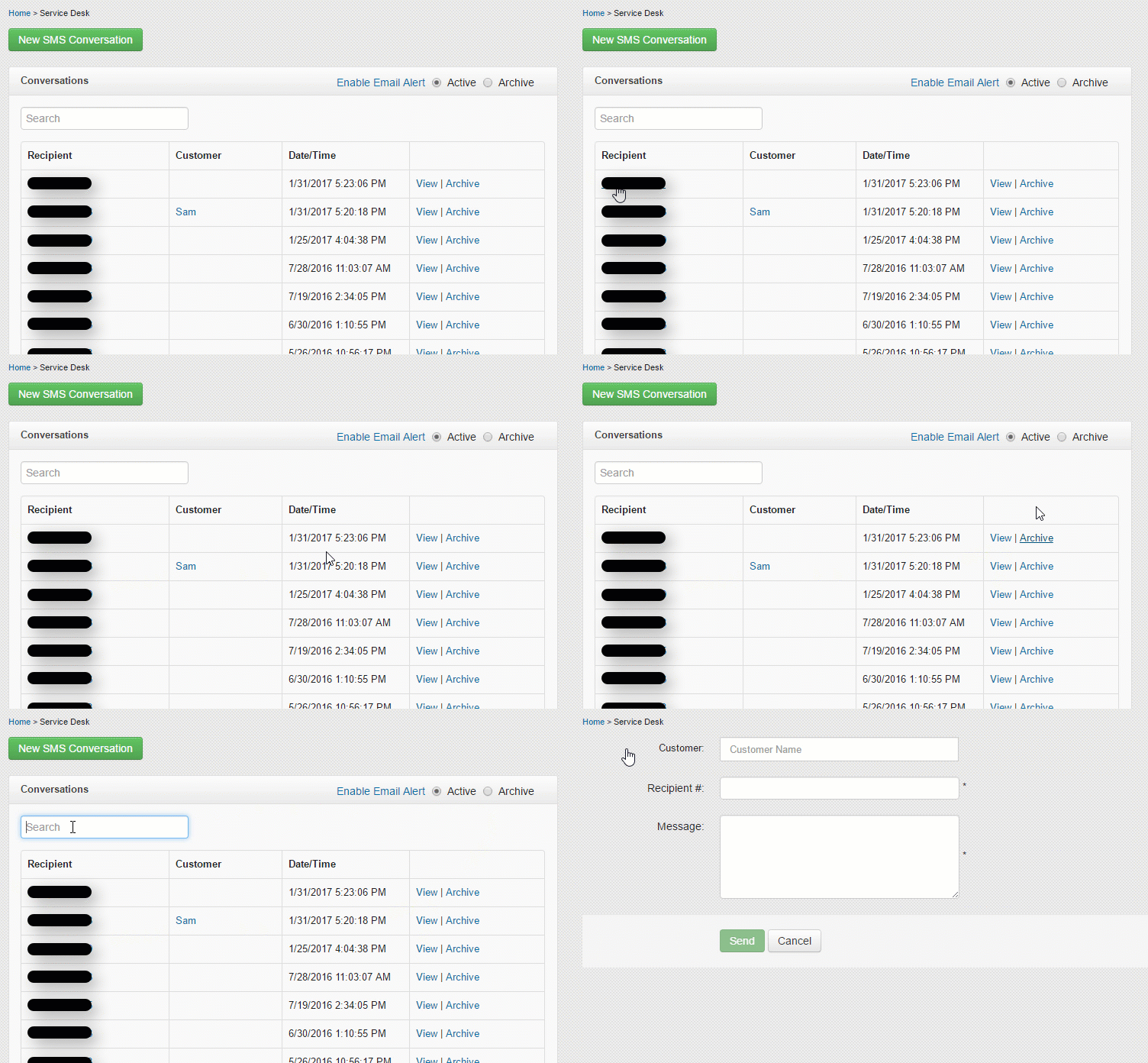
- Recipient - displays the phone number of the conversation
- Customer - displays the customer name. If you click this it will take you to their customer profile.
- View - will show you the SMS conversation thread with that customer
- Archive - beside view will let you hide the conversation.
To view an Archived conversation, you can toggle between your Active and Archived conversations on the top right.
You can either choose from an existing conversation thread or start a new conversation by clicking the green New SMS Conversation button in the top left.
Send your Message
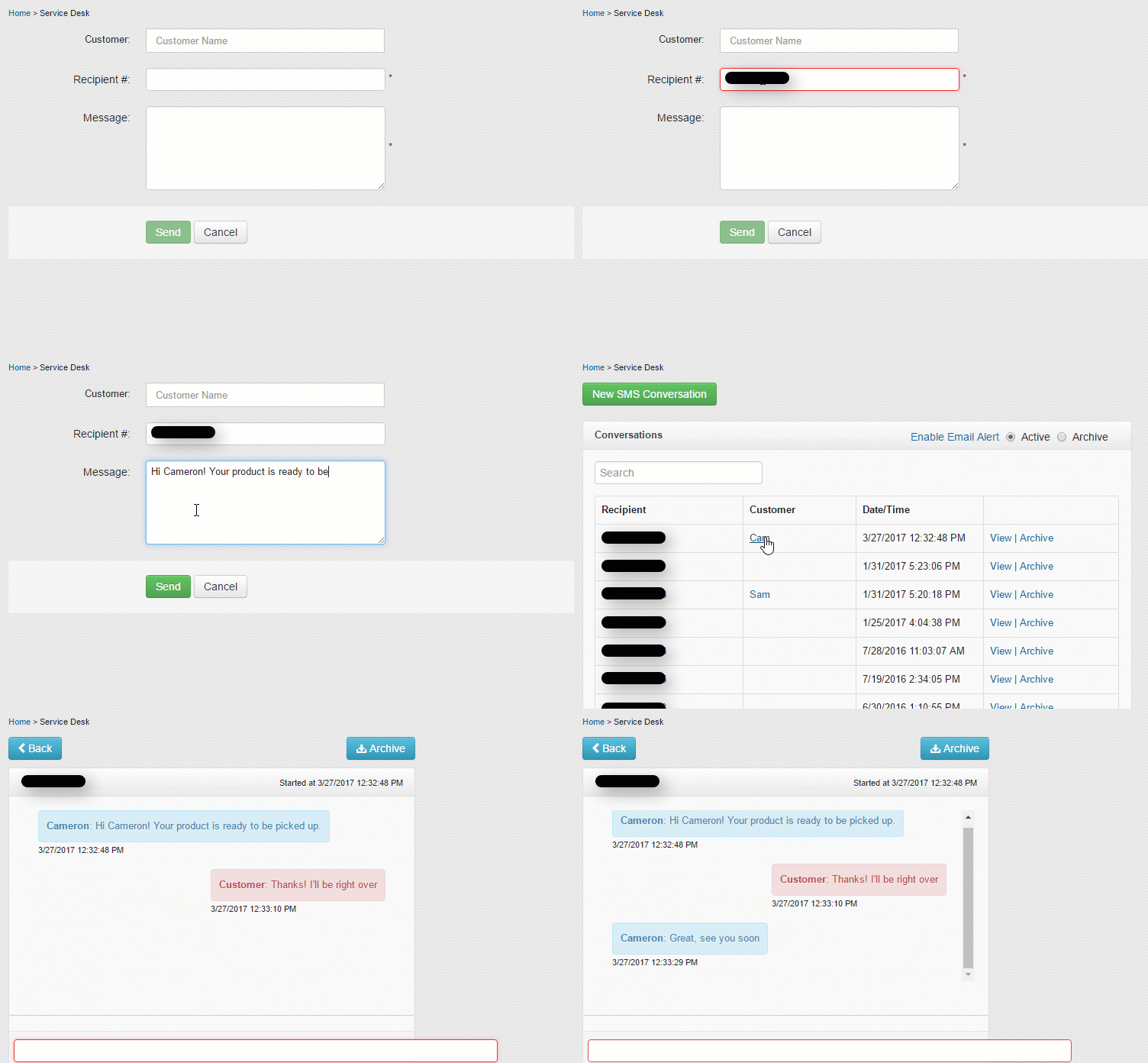
- In the Customer field you can type a customer's name to search their number.
- In the Phone field you can type the number to text
- In the Message field you can type your message. *Note every 128 characters is considered 1 text.
Once the message is sent, your customer can reply to the message and you'll be able to see their reply!
If they respond, a notification will appear next to any unread messages.
To respond, simply select the phone number or view button, type your response, and click Send.
You can also be notified when a customer responds by selecting the Enable Email Alert button and modifying your alert settings.
Questions?
If you have extra questions don't be shy - talk to us and we'll be happy to help!
Comments
0 comments
Article is closed for comments.