
Manual point adjustments must be done through http://portal.tapmango.com and you must be signed into a user account with the proper permissions.
If your user account cannot see or access the options listed below, please contact the person at your business who manages the rewards program to request access.
Where do I go?
To adjust a customers points navigate to Customers > Customer List
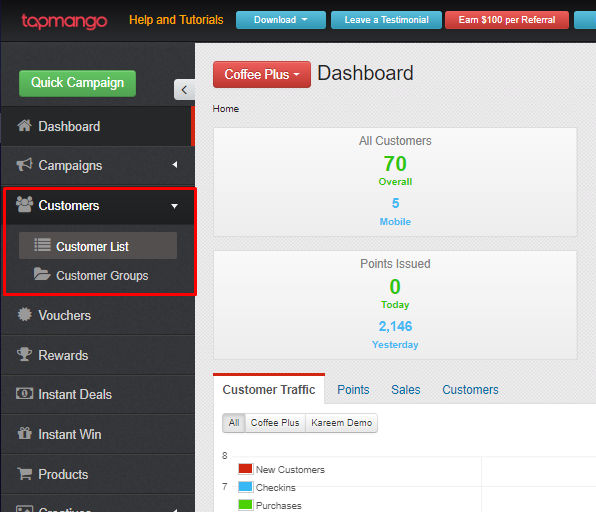
Find your customer
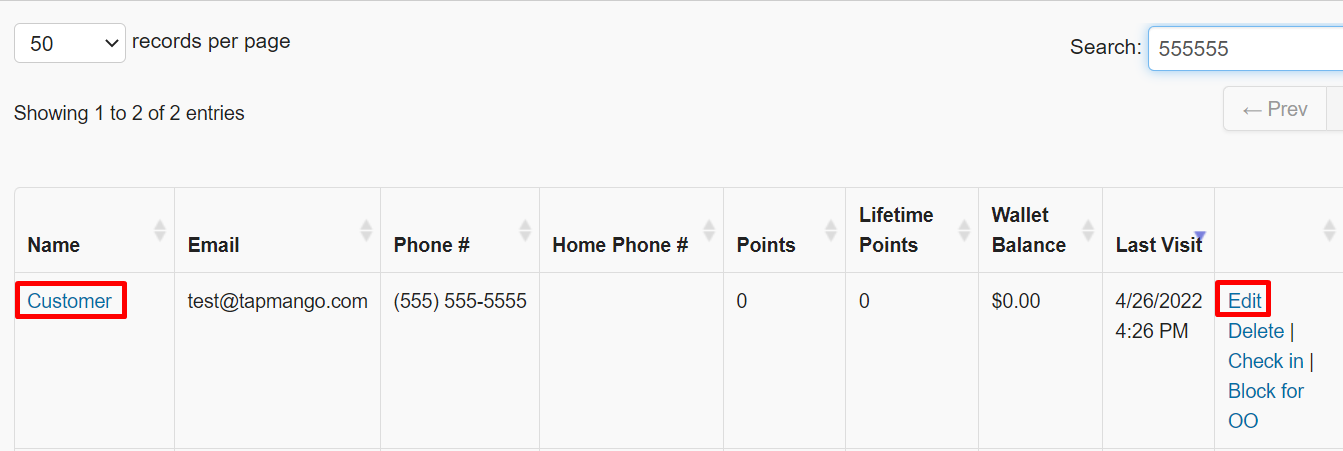
Search for your customer using the search box in the right hand corner of the customer list. You can use any of the following to pull up their account:
- Customer Name
- Phone Number
- Notes
- Tag Number
Once you've pulled up their account, click on their Name or click on Edit to go to their profile.
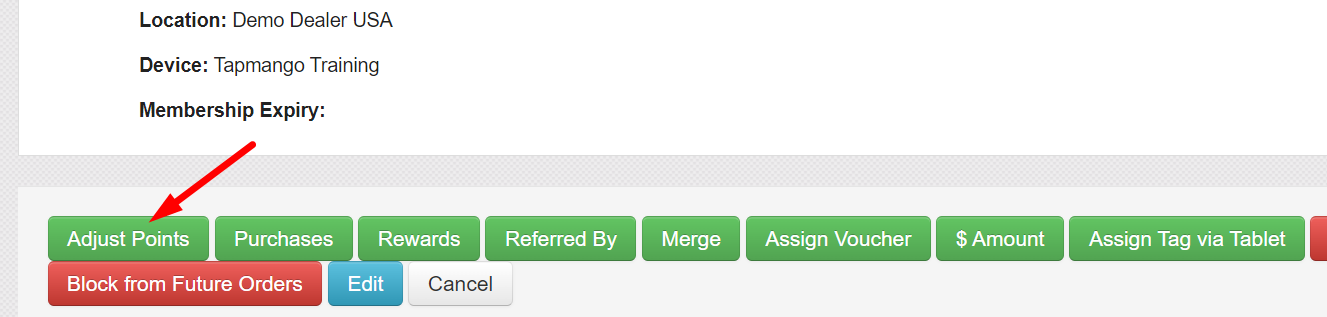
Select Adjust Points
On your customer detail page select Adjust Points along the bottom row of green buttons.
You will get a pop up box for you to enter the number of points you wish to add or remove.
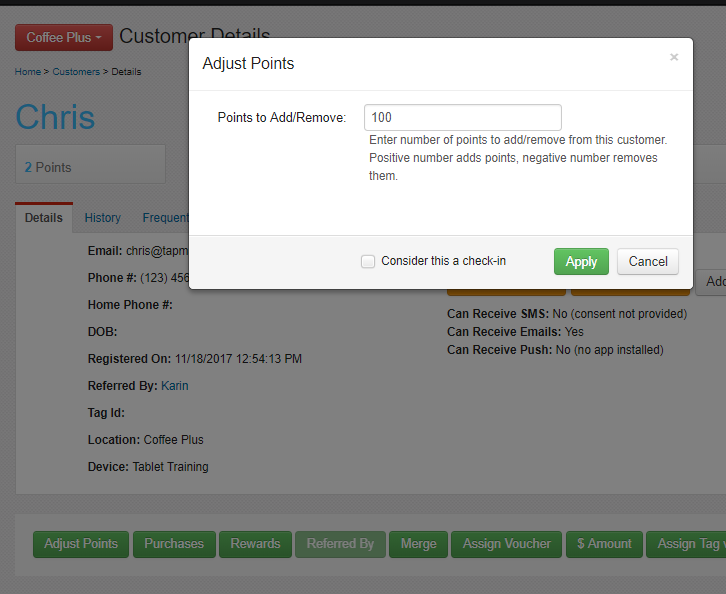
If you enter a negative number (ex. -45), it will deduct points from their account.
If you enter a positive number (ex. 45) it will add points to their account.
The Consider this a check-in option is if you want this addition/subtraction of points to count as a check-in for the customer, which will be displayed on their history and be counted towards relevant reports.
Once you've entered in your values, you can then select "Apply" to save.
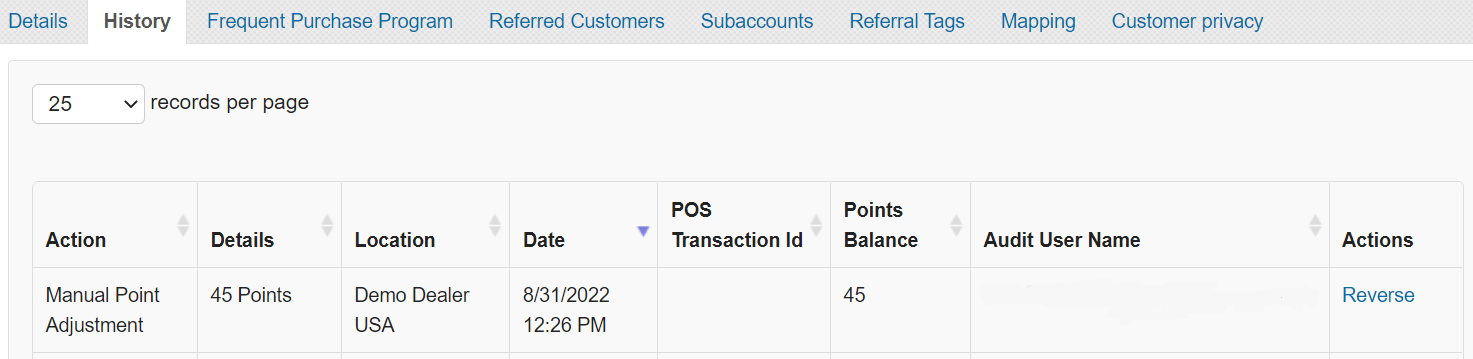
All done, your customer points are updated, and the customer's history will have a Manual Point Adjustment entry for tracking.
Questions?
If you have extra questions don't be shy and talk to us and we'll be happy to help!
Comments
0 comments
Article is closed for comments.