
This guide is for managing a customer's contact preferences - if you'd like to remove a customer entirely see our guide on deleting customers
Updating a customer's contact preferences is simple!
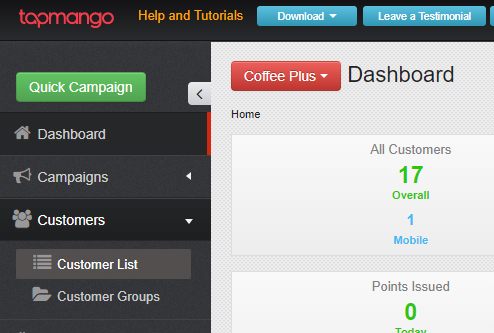
Navigate to the Customers section
On portal.tapmango.com select customers > customer list
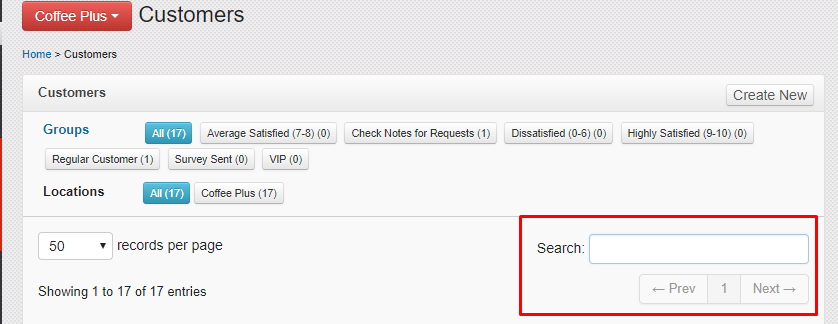
Find your customer
In the search box, search for the customer you'd like to update. You can search by typing any part of the following:
- Name
- Phone
- Keytag Number
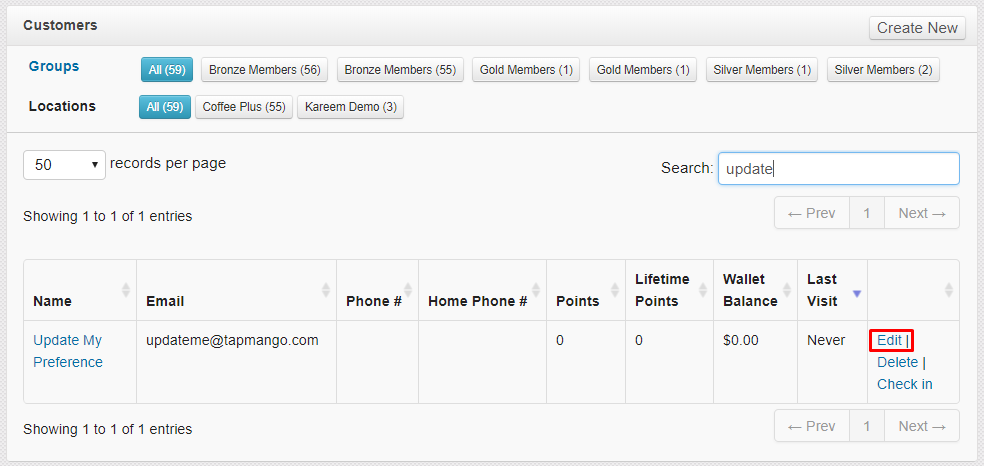
Select Edit
Now select 'edit' to access their profile details
Update and Save!
You'll be taken straight to the customer's details. Communication preferences are on the right side in the box title Communication Preferences.
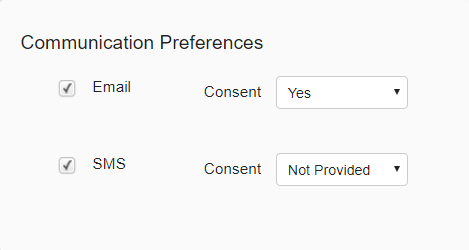
There's two components to this Consent and Subscribed
Subscribed
is indicated by the check boxes next to email and SMS. If the box is checked the customer is subscribed, if it's unchecked the customer is unsubscribed.
Consent
is a little different - this is whether or not the customer has agreed to receive messages for that type. Someone can still have consented to receive messages, but chose to unsubscribe. Here's what each means
- Not Provided - the customer hasn't said yes or no - if a customer who is set to this checks in on the tablet they will be asked to agree.
- Yes - the customer has told you the DO consent to receive emails
- No - the customer told you they do NOT consent to receive emails
SMS
- Ask - Legally a customer must explicitly opt-in to an SMS in clear terms. Checking this option sends the customer an SMS opt-in message after saving the profile. At this point customer's must text back YES to receive your SMS.
- Not Provided - the customer hasn't said yes or no - if a customer who is set to this checks in on the tablet they will be asked to agree.
- No - the customer told you they do NOT consent to receive SMS
Questions?
If you have extra questions don't be shy and talk to us and we'll be happy to help!
Comments
0 comments
Article is closed for comments.