
To create Customer Groups you need to go to portal.tapmango.com and log in.
Customer Groups can be very effective for multiple reasons, some of the reasons include:
- Grouping Customers based on the products they purchase
- Providing your most active customers some sort of VIP status
- Providing rewards or vouchers to specific customer groups
- Finding out metrics & creating groups based on Customer Group Filters! Check out our Customer Group Filter Breakdown here.
Step 1: Go to Customers -> Customer Groups
Step 2: Click Create New
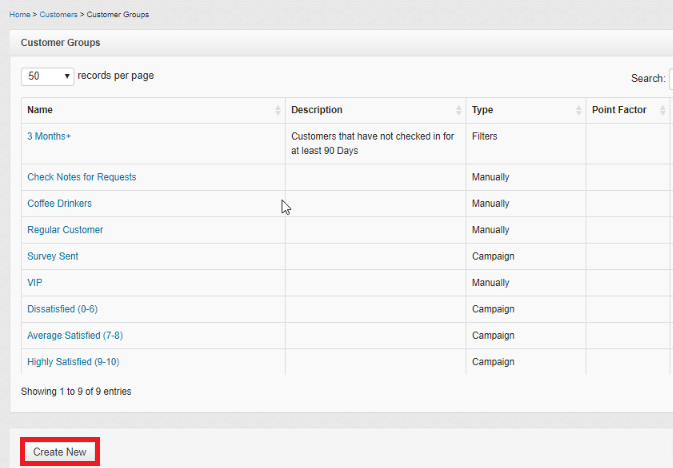
Step 3: Fill out form
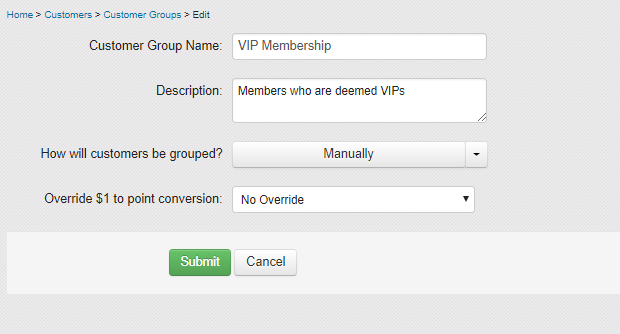
From there, you can give the group a name, describe the group, and change the number of points that customers within this group receive.
For the Override $1 to point conversion field:
- Default: Gives your customers the same amount of points that all of your customers receive.
- Point Factor: Enables you to create a new conversion amount. Within the Conversion Factor text box, enter how many points you would like a customer to receive for every dollar they spend.
- No Points will be Given: If customers are in this group, they will not be provided points when your cashier enters the amount of money spent on the TapMango Tablet, or when an integrated POS makes a sale.
For How will customers be grouped? field:
- Using Customer Filters: The most powerful method as it will update automatically. This lets you choose up to 2 customer filters to apply to a group. These filters will refresh the group every 24 hours, or when a campaign targeting that group is run. We have many different types of filters to choose from. You can filter customers on things such as points values, visits, voucher and reward redemptions, referrals, purchases and even customer details. Be sure to check out the Customer Grouping video series here for a more thorough walk through. Or click here for our article on Customer Group Filters for a more comprehensive breakdown of possibilities.
- Manually: You will be able to manually add the customers to this group via the tablet or Portal
- Using System Campaigns: Means that you will not be able to add customers to this group via the tablet or Portal, only through Campaigns (like if they haven't been in store for 90 days, they posted to Facebook from the tablet)
Comments
0 comments
Article is closed for comments.