
The TapMango Desktop application is a companion application that you can install on Windows-Based computers.
What's it do?
The desktop app will provide you with the features of the cashier facing tablet, on your windows computer.
There will be a small floating circle that appears above every other window, and when a customer checks in the app will load up and open the desktop application window.
What's Supported?
Currently we support Windows 7 or higher. or Mac OSX.
We do have a version for Windows XP - we have discontinued support for this and it's provided as-is.
What's Required?
In order to install our desktop application you must:
Windows
- Have Administrator access to the PC you're wanting to install the application on
- The windows version must allow installing of applications - windows versions designed for lightweight kiosks may not work. Ex: Windows Embedded, or Windows 1- LTSB
- A TapMango tablet to pair the application with
Note: For stand alone use please contact TapMango Support for assistance - .NET Framework 4.5 or higher. See this page from Microsoft for details
Note: If you're running windows 10 this should already be installed)
Mac OSX
- OSX Version 10.11 +
How do I get the Application?
You can find the download for the application under portal.tapmango.com after logging in. Look for a 'download' button on the top bar and select the version you need:

- Desktop App (Windows XP) - this is our XP version of the desktop application. See below for specifics. Please note - the Windows XP version has been deprecated and is no longer receiving updates.
- Desktop App V1 + Desktop App V2 are legacy versions and no longer receiving support. They are available due to various POS configurations.
- Desktop App V3 (Windows 7+) - This is the newest and recommended version. It was designed for Windows 10, but does run on Windows 7. Some versions of windows a POS use may be incompatible.
- Desktop App V3 (MacOS 10.11+) - if you're using an Apple Computer.
How do I Install the Application?
Windows 7+
Use the following steps to download and install the windows 7 version
- Click the link to download V3
- Once downloaded open the file (you may see the download on-screen depending on your web browser, or usually in your 'downloads' folder on the computer)
- Depending on your windows version, antivirus, or security settings you may get a windows 'smart screen' pop up - you will need to click 'more info' and then 'run anyway' to proceed
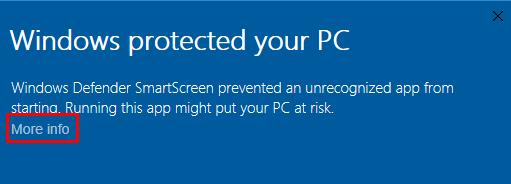
- Click 'Next'
- Choose where to install, or keep the default location. Either is fine.
- Keep 'Just Me' selected if you're the only one using this PC.
- Click 'Next'
- Depending on your windows security settings you will now get a 'User Account Control' message
- Confirm to install
- Once installed you'll be told and you can launch the app
Window XP
Windows XP is a little different. do the following:
- You will choose the XP install and this will download a .zip file
- After downloading locate your file and right click, and 'extract all'
- Choose a folder to extract to
- Once extracted you can go to this folder.
- This will have an install file for .NET Framework 4.0 if needed
- There is a readme file for reference
- Select 'files' and then look for 'tapmango.desktop.exe' - it will have a red icon this is what you want to open
- You can right click this and choose 'pin to start' or 'sent to desktop (create shortcut)'
What do I do when it's installed?
For windows 7 you need to open the app. You can do so by pressing 'start' and typing 'tapmango.desktop'. You can also create a shortcut for yourself by right clicking this and choosing 'pin to start' or 'pin to task bar'
For window XP you can open the shortcut or .exe outlined in the steps above.
When you open the app you'll be asked to sign in - use your portal.tapmango.com login. You'll be asked to choose a tablet to pair your desktop application with, this should be the tablet you have facing customers.
For Mac you should now have the program listed on your installed apps.
And you're done!
None of this is working? Let us know!
If you're having difficulty then don't hesitate to talk to us and we'll help out.
If you're having difficulty with our current version please contact support for using legacy versions of our app.
Comments
0 comments
Article is closed for comments.