
An important part of any loyalty program is capturing information from customers. Depending on your business model, or foot traffic you may want to adjust the default settings.
What's The Default?
By default Tapmango will capture the following:
- First Name (Required)
- Phone Number (Optional)
- Email (Required)
- Day and Month of Birth (Optional)
Why is it like this?
We require email as a default because it can be used on customer.tapmango.com in conjunction with a keytag to view points online without creating an online account.
How do I change it?
Changing this is easy, and there's more options than this!
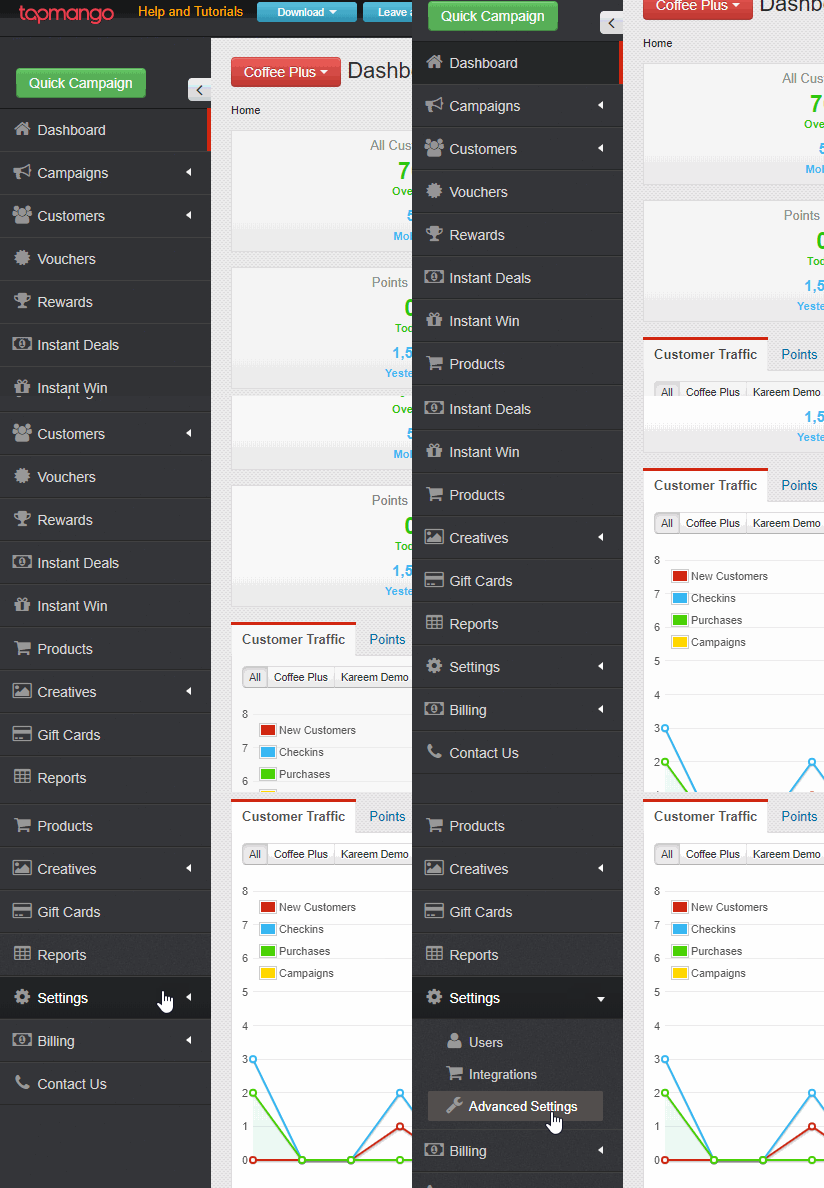
Navigate to Advanced Settings
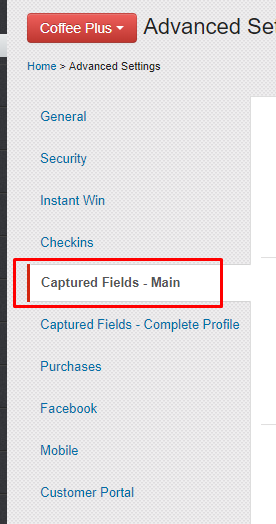
Select Captured Fields - Main
Note: the 'profile complete' captured fields are for your online profile complete - only use these if you want to have different options for when you ask customers to complete their profile online.
Check and Uncheck the options you want, then save!
Under the captured fields setting you'll see the following:
| Setting | When checked |
|---|---|
| Requires Full Name? | Customers will be required to enter two words for their name |
| Hide Name? | Customers will not be asked to enter a name |
| Name Optional? | Name will not be required |
| Phone Mandatory? | Phone number will be required |
| Capture Phone First? | When using a keytag to sign up, phone number will be asked before name |
| No Phone Mask | When using a keytag to sign up, phone number will not be asked |
| Hide Email? | Customers will not be asked to enter an email |
| Email Optional | Email will not longer be required |
| Requires Date of Birth | Date of birth will be required |
| Hide Date of Birth | Customers will not be asked to enter a date of birth |
| Year of birth will be asked in addition to month and day |
Custom Questions
TapMango can also add up to 5 custom questions to your sign up process.
What can I ask?
These can be one of the following types:
- Open Text Box
- Checkbox
- Date
- Select List
How do I add these?
TapMango support must add these for you - so just give us a call and we'll be happy to add it at request.
Don't forget to reload
Changes to your system settings mid-day will require a tablet reload to take effect. Normally this happens once per day, but to force it mid-day:
Customer Side
Triple tap the tablet screen quickly 3 times, and select 'reload' at the top
Cashier / Admin Side
Select Other then System Menu and select 'reload' at the top
Questions?
If you have extra questions don't be shy and talk to us and we'll be happy to help!
Comments
0 comments
Please sign in to leave a comment.