
Depending on your business, staff make up, or personal preference you may want to add a password to restrict access to your tablet's cashier side. This is easy to set up!
Turning Tablet Pin on or Off
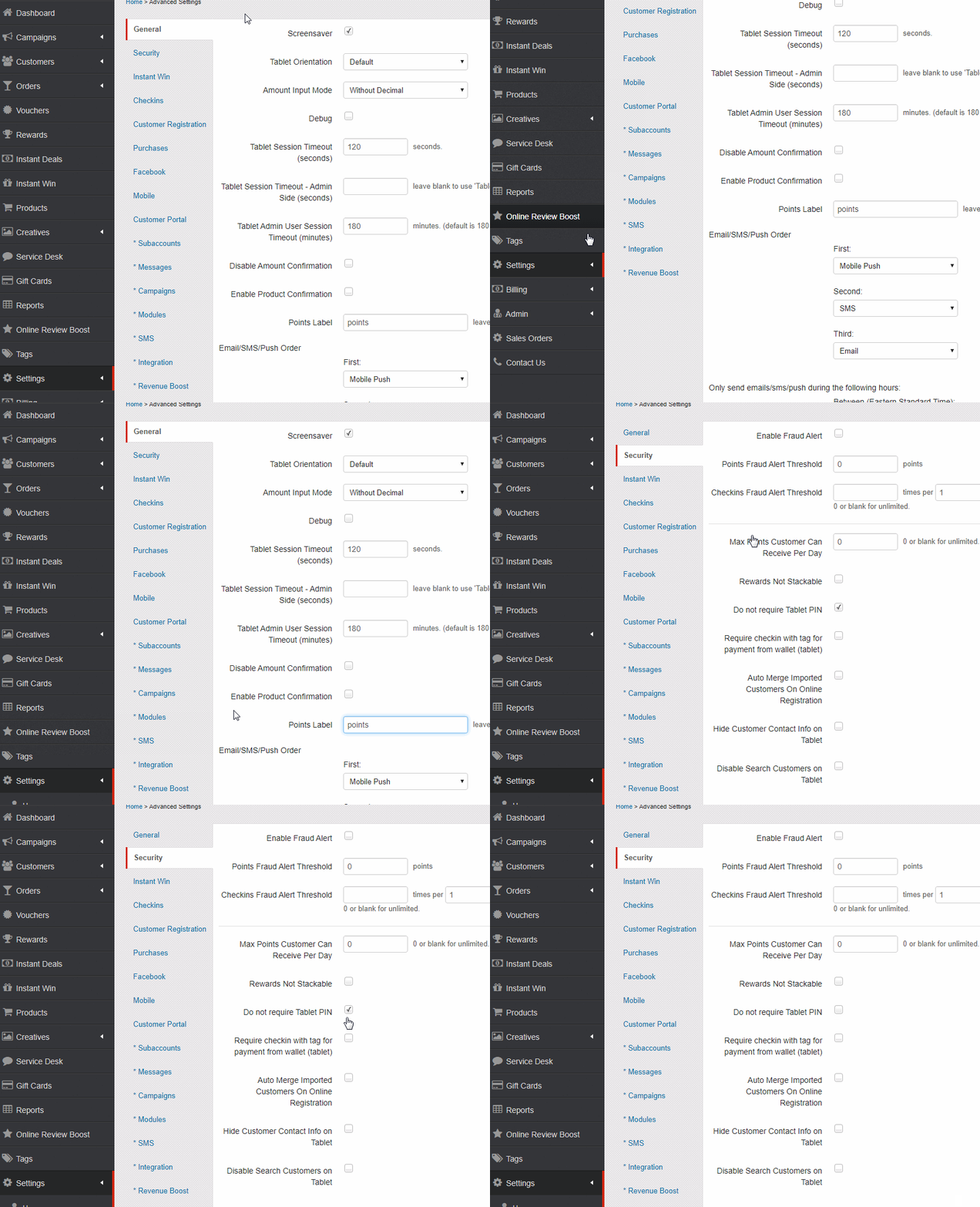
Navigate to settings > advanced settings > security
- Select security
- Uncheck Do Not Require Tablet Pin to enable the pin
- Click Save at the bottom of the page
Setting Pins for Users
To set a pin for users you just need to edit an existing user and change the value for Tablet Pin. For more information see:
How do I add or edit additional Users?
How does the Pin Work?
Once turned on and the tablet has been refreshed your staff will be asked for a pin to access the cashier side of the tablet.
Note: To refresh the tablet tap the screen quickly 3 times and select reload or from the cashier side navigate to other > system menu and select reload
User Restrictions
When you use the tablet pin the user restrictions selected apply. For more information see:
User Roles and Restrictions Explained
Additional Questions?
As always, if you have any additional questions that isn't covered in this guide do not hesitate to contact us and we'll be happy to help.
Comments
0 comments
Article is closed for comments.