
For information about playlists, and the types of playlist items see our feature article on playlists.
Where Do I Go?
The Playlist feature is found under http://portal.tapmango.com > creatives > playlists
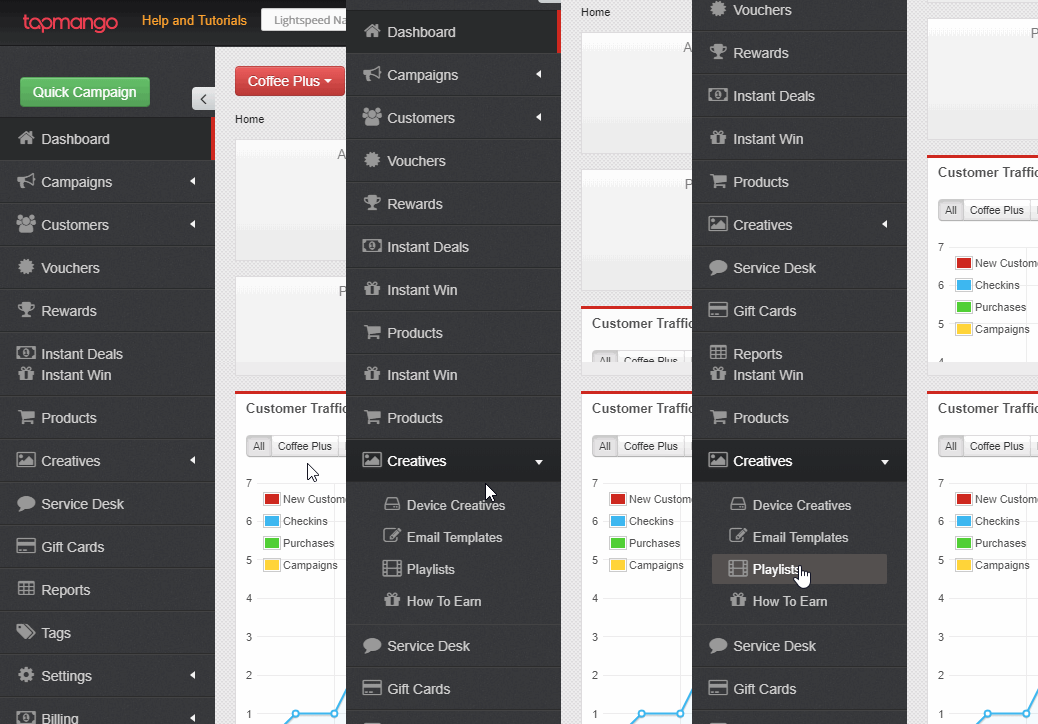
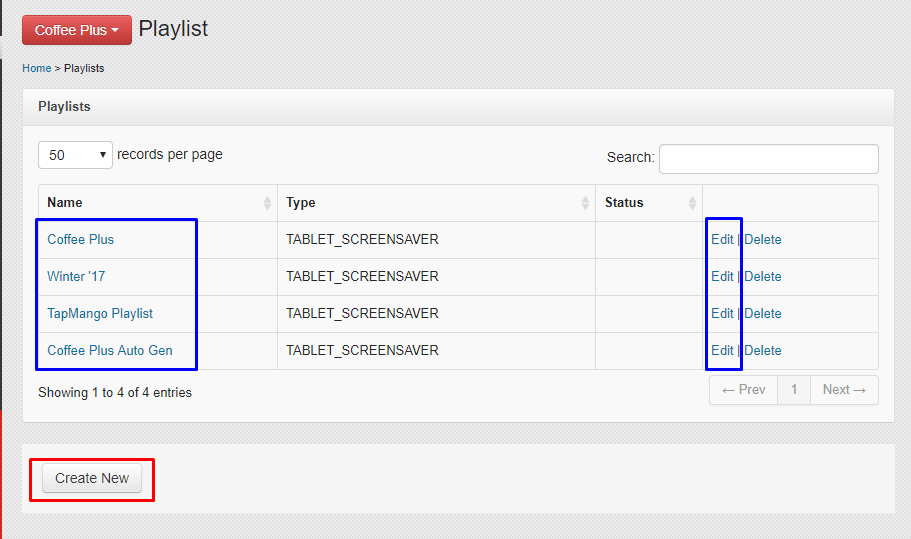
- To Updated or Edit an exiting playlists click the playlist name or edit on the right side
- To Create a new playlist click Create New at the bottom of the page
What Do I Do?
When editing or creating playlists there's a few things to fill out
Name
The playlists Name, it's only for your eyes so it can be whatever you want
Show on Devices
A list of your available tablets. Check the tablets you'd like the playlist to be shown on. Tablets in light red already have a playlist published to them. If you select one of these tablets then the playlist you're creating or editing will be displayed instead.
Images
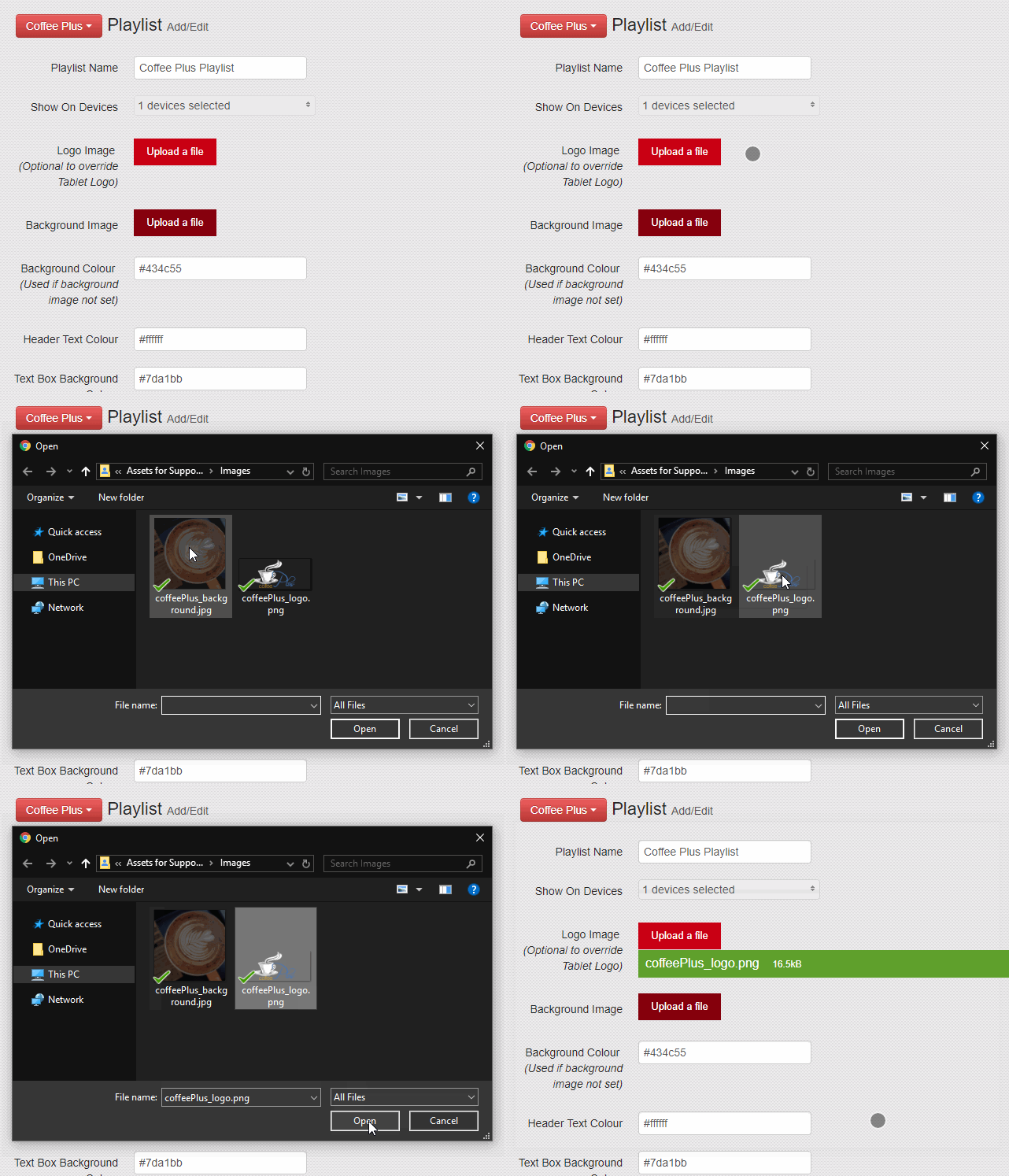
You can upload an image to be used in the playlist. This is simple to do, just click upload a file
Images will stretch to fit the tablet's area. So feel free to use any size you want. For best fit we'd recommend 880 x 800 pixels or an image of the same aspect ratio
Logo Image
This is the logo used on the various playlist items. This is optional, and is only used if you want a different logo image than you've uploaded as your Tablet's Logo under creatives > device creatives
Background Image
The image for use in the background. This is optional and replaces the background colour entered. This background applies to all items in the playlist except images.
Colors
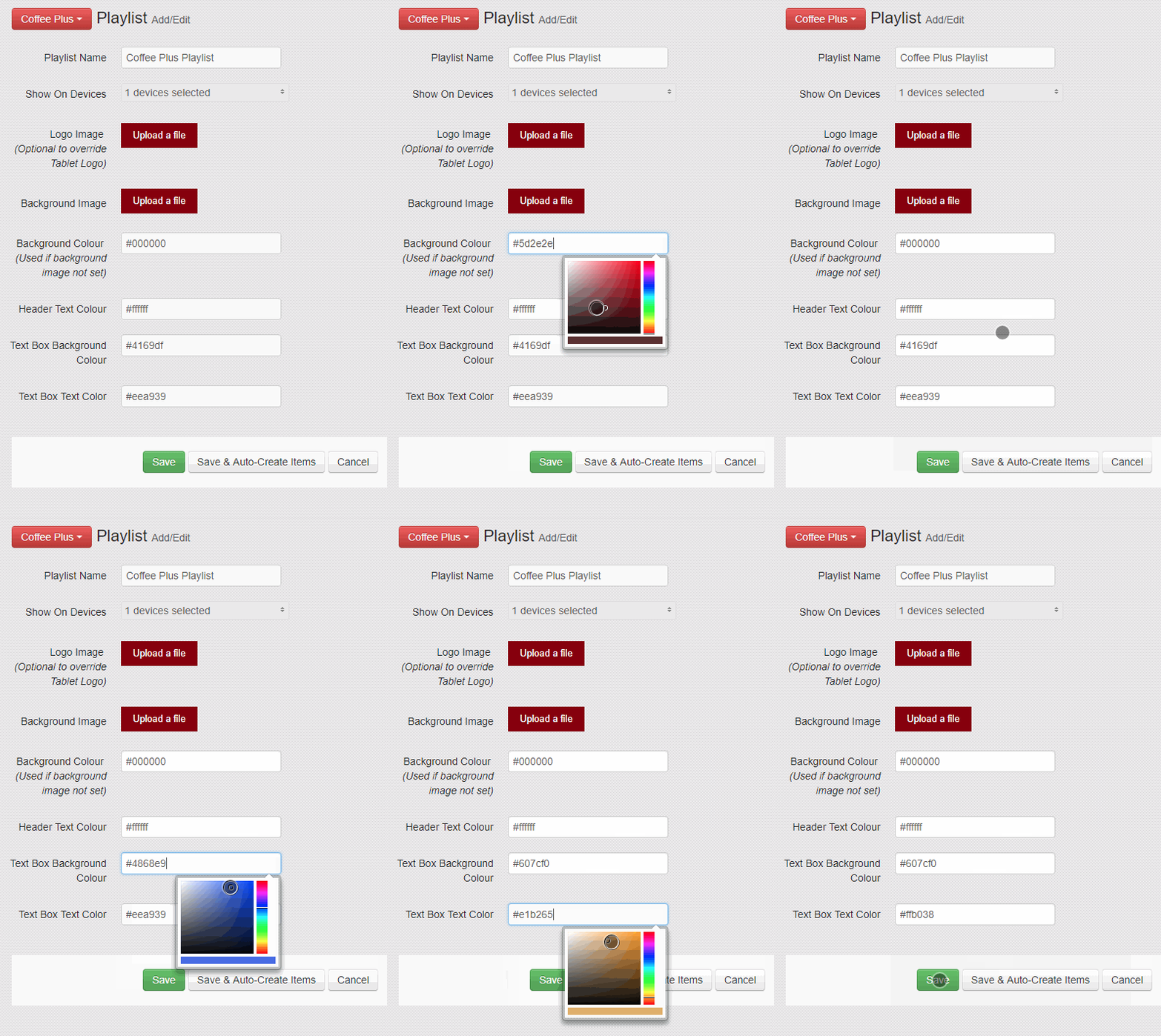
There are 4 types of colours you can define. There is an in-browser colour selector you can use to help. The colours are formatted in a 6 digit combination called hex colour. Here's a useful site to help you find specific values if you'd prefer to enter them yourself.
Background Colour
The colour used for the background of each playlist item.
Header Text Colour
The main header text's colour that appears in each playlist item. This should contrast the background colour.
Text Box Background Colour
The background colour for information used in the playlists.
Text Box Text Colour
The text colour used foor information in the playlists. This shuold contrast the Text Box Text Colour.
Auto-Generate Yourself
During onboarding we'll autocreate some items for you. If you use the option save and auto-create items the playlist feature will automatically create the playlist items that will work with your rewards program. Ex: If you have an SMS Keyword this will create a Register SMS playlist item.
Questions?
If you have extra questions don't be shy and talk to us and we'll be happy to help!
Comments
0 comments
Article is closed for comments.