
Special Tags are pieces of text that can be used in TapMango emails, text messages, and push notifications that will be replaced with dynamic content when the message is sent.
How Do I add Special Tags?
SMS/Push

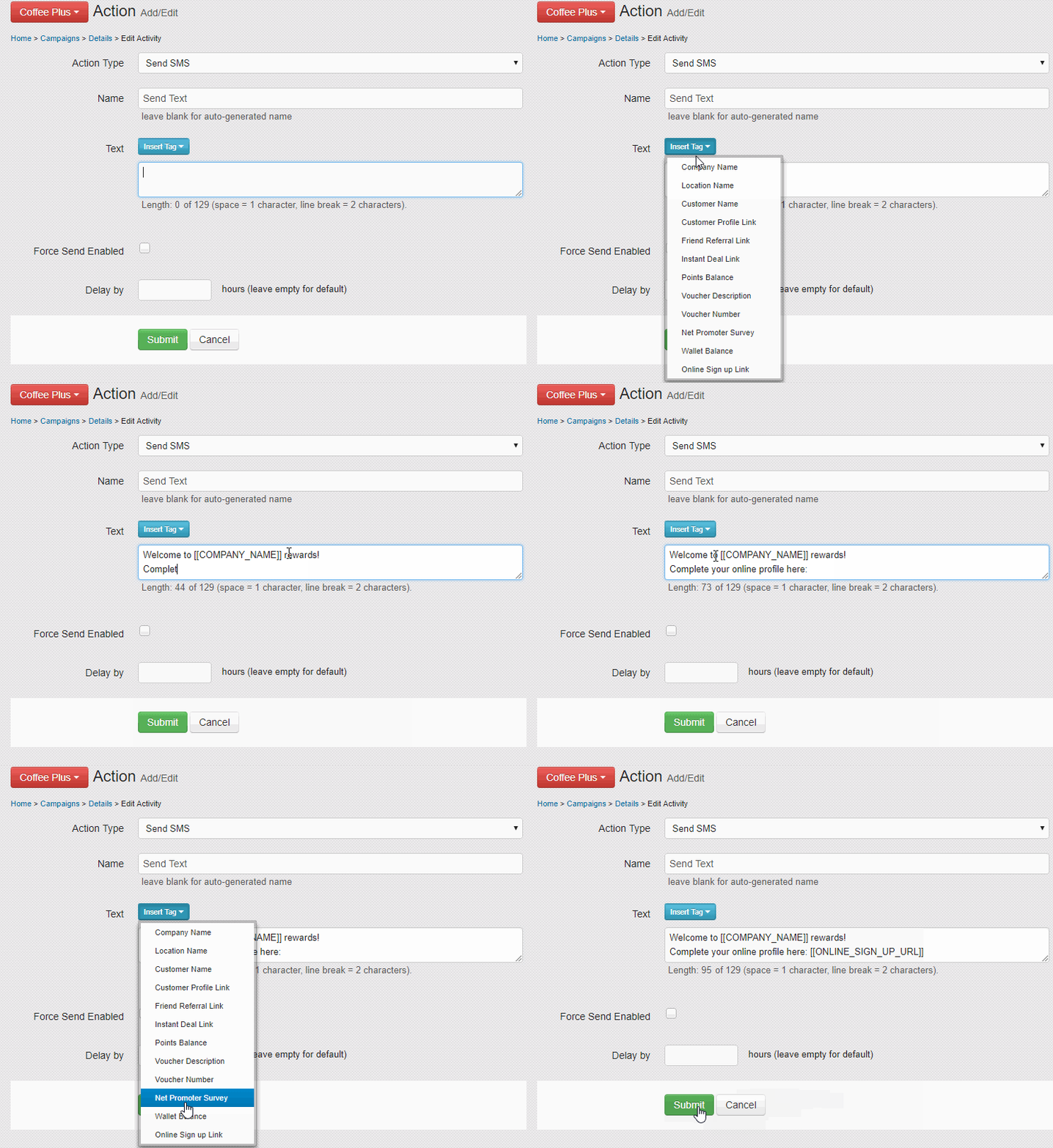
Use the insert tag button found when editing an SMS/Push notification through either the Campaign Manager or Quick Campaign. Click the tag from the list and it will be placed where you were last typing in the text box.
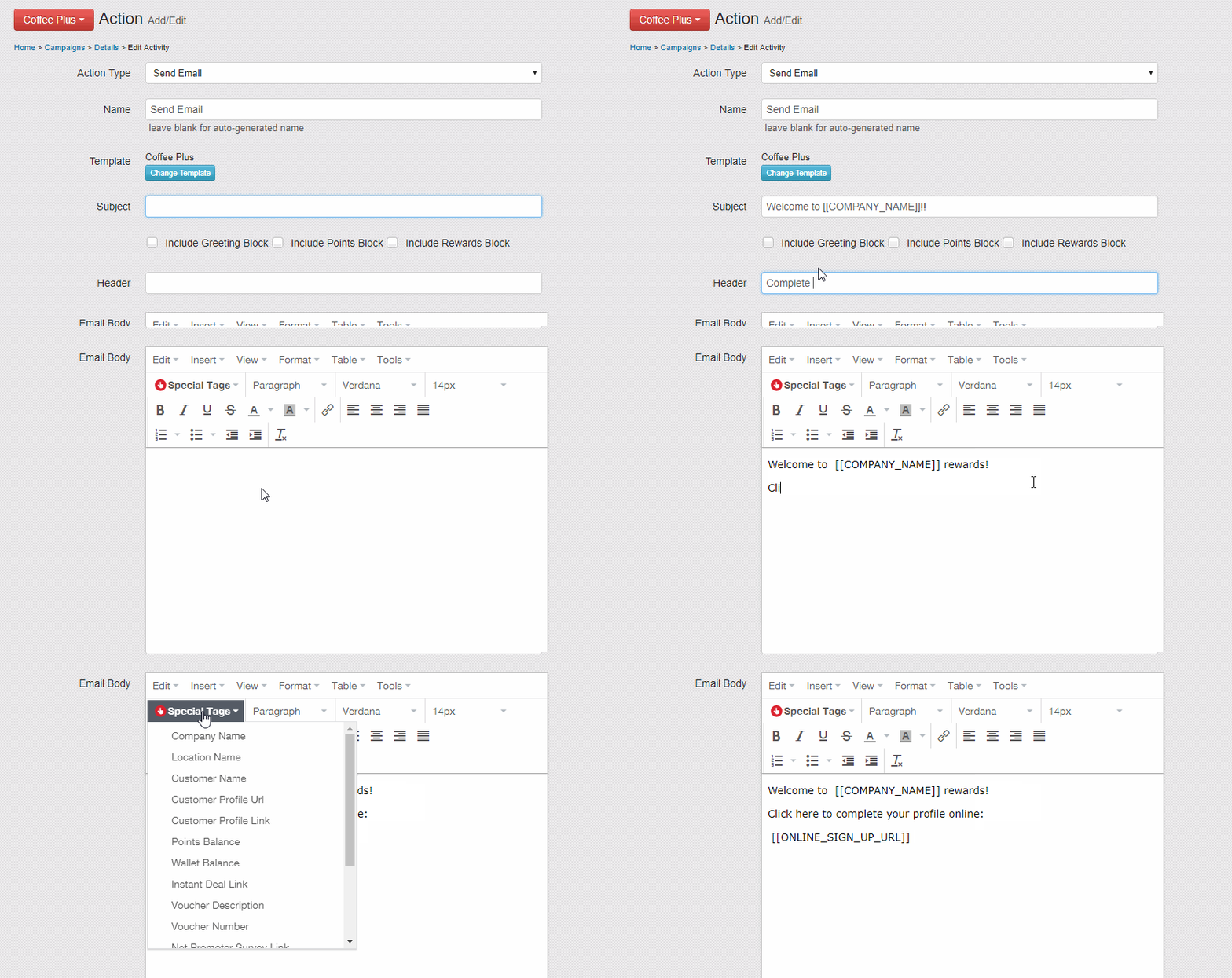
Use the special tags button on the email editor when typing out an email. Select a tag from the list and it will appear where you were typing in the email. You can also type out the tags manually in the subject, or header sections.
What Does Each Special Tag Do?
Special Tag |
Appears As |
Availability |
Description |
| Company Name |
[[COMPANY_NAME]] |
Any | Displays your company Name, as shown in the top left corner of your http://portal.tapmango.com account |
| Location Name | [[LOCATION_NAME]] | Any | Displays the name of the home location of the customer receiving the message. These names can be found on your list of devices on the dashboard. |
| Customer Name | [[NAME]] | Any | Displays the customers name. Use caution with this in a text message, customers names could be long, causing you to exceed the text message character limit |
| Customer Profile Link | [[PROFILE_URL]] | Any | A link to your customer's online profile to view points and rewards. When used on the email editor you'll be given a pop up to type the text that will be clicked. |
| Customer Profile URL | [[PROFILE_URL]] | Email Only | If you'd like to display the direct link, instead of using a text to click. |
| Friend Referal Link | [[REFER_FRIEND_LINK]] | Any | Your customers unique friend referral link, that can be shared with their friends to sign up online and collect points at your business. |
| Instant Deal Link | [[INSTANT_DEAL_URL]] |
Any |
When using the action promote instant deal you can use this to display the instant deal link for your customers to click. When using this on the email editor you'll be given a pop up to type the text that will be clicked. |
| Points Balance | [[POINT_BALANCE]] | Any | Displays your customers point balance. This only displays the number and should be followed with your points label. Ex: [[POINT_BALANCE]] points or your current points: [[POINT_BALANCE]] |
| Wallet Balance | [[WALLET_BALANCE]] | Any | Displays your customers wallet balance. This will include the dollar sign of your account's currency and 2 decimal places. Ex: $50.00 |
| Voucher Description | [[VOUCHER_DESCRIPTION]] | Any | Used when the activity is also assigning a voucher. Displays the description of your voucher, plus an expiration date. Ex: Free Large Coffee (from 12/03 to 12/10) |
| Voucher Number | [[VOUCHER]] | Any | Used when the activity is also assigning a voucher. Displays the voucher prefix, along with the assigned number. Ex: MISSU-7259f5 |
| Net Promoter Survey | [[NETPROMOTER_URL]] | Any | Links to a net promoter survey; asking your customer on a scale of 1-10 how likely they'll refer their friends. |
| Net Promoter Survey Block | [[NETPROMOTER]] | Email Only | Generates a block of text in the email that will be a visual link to the net promoter survey. |
| Net Promoter Survey Block - French | [[NETPROMOTER_FRENCH]] | Email Only | Generates a block of text in the email that will be a visual link to the net promoter survey, but in french instead of english |
| Online Sign Up Link | [[ONLINE_SIGN_UP_URL]] | Any | Links to a customers online profile, but provides the option to first complete their profile information and create a password. Useful if you've imported a lot of customers or want to push to give people accounts online. |
| Online Review Buttons | [[REVIEW_BUTTONS]] | Email Only | Displays links with icons to click for your listed review websites. Currently supported: Facebook, Yelp, and Google |
Questions?
As always, if you have any additional questions that isn't covered in this guide do not hesitate to contact us and we'll be happy to help.
Comments
0 comments
Article is closed for comments.