
My Tablet Goes To Sleep!
Your tablet has a setting that puts the tablet to sleep after "x" amount of time of inactivity. This option is quite easy to change.
ASUS
You will need to be on the tablet homepage. This means you will need to exit out of the TapMango app if it is on. Follow the steps to get to the homepage. Disregard these steps if you are already on the tablet homepage.
1: On the TapMango app, flip to the merchant facing side.
2: Click the "Other" menu option on the left had side
3: Click the "System Menu" button
4: A menu will come up with the option to "Quit" at the bottom
5: Click "Quit" and type in "999999" to exist out the app
You should now be at the homepage of the tablet!
What Next?
Now that you are on the homepage, you will need to access the settings of the tablet. You can do so easily by dragging down from the top of the tablet. This will open a new window. On the top right of that window, you will see a gear icon. Click that to open the settings.

The Settings Menu
Now that you are in the settings menu, you will need to find the "Display" option under the "Device" heading. Select the "Display" option. This will take you to the display settings in the tablet. In here, you will see the "Sleep" setting. Click on "Sleep" and set it to "Never".
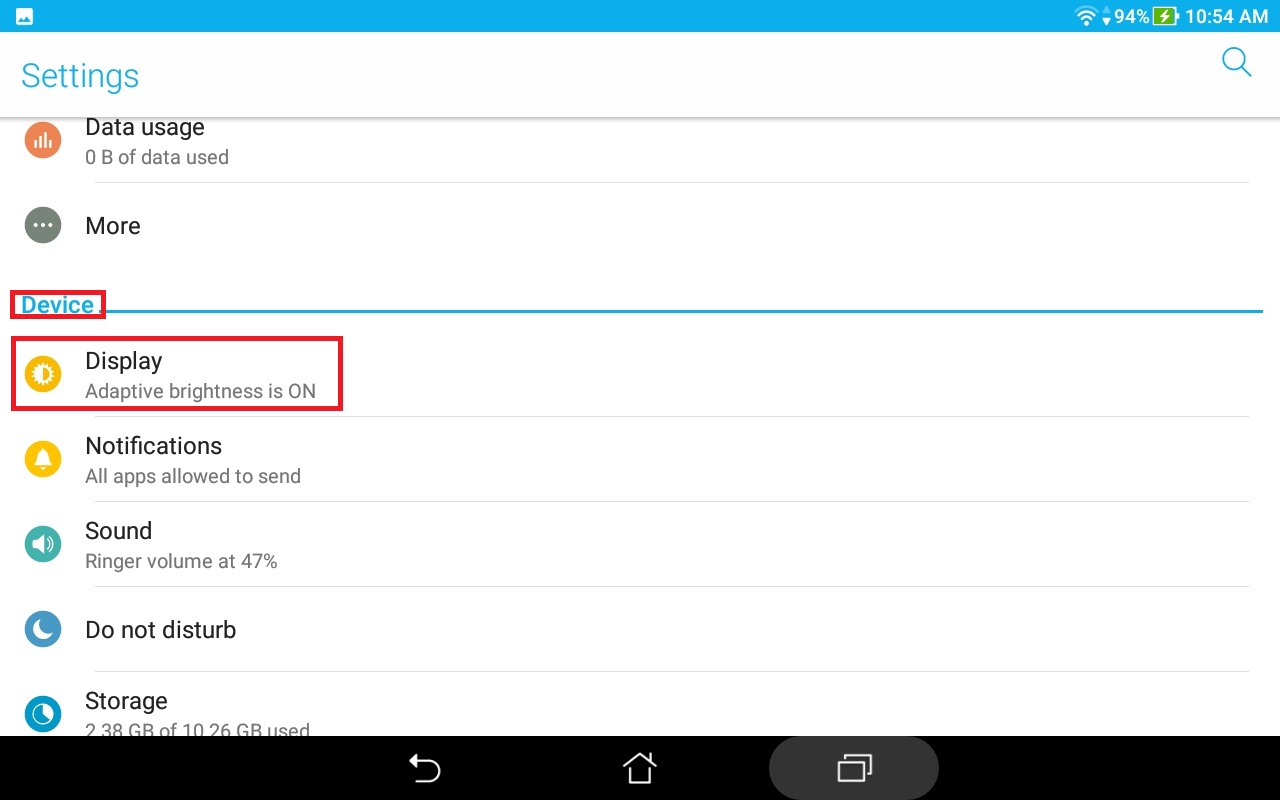

This will now set the tablet to never go to sleep regardless of how long inactivity will be.
Samsung
1. Go To Your Tablet Settings
- Swipe up on your screen to open your app drawer
- Click "Settings" (gear icon)
2. Enable Developer Options
Once in your settings, scroll down to the bottom and look for Developer options. If Developer Options are there, you can proceed to step 3. If Developer Options is not available, follow the steps below.
- Tap "About tablet" then tap "Software information"
- Tap "Build number" 7 times. You will see a prompt pop up after a few taps indicting how many taps until you enable the options
- Once complete, go back to the main settings page
3. Enable Stay Awake
- Tap "Developer options" in the settings menu
- Look for an enable the "Stay awake" option
Your tablet screen will no longer timeout as long as the tablet is charging!
Additional Questions?
As always, if you have any additional questions that isn't covered in this guide do not hesitate to contact us and we'll be happy to help.
Comments
0 comments
Article is closed for comments.