
How Do Barcodes Function?
When a voucher/reward with an assigned Barcode Number is selected for redemption on the cashier facing side of the tablet, a QR code or Barcode will be made available for the cashier to scan.
This barcode is only available on the tablet, it will not appear on your POS if integrated with TapMango.
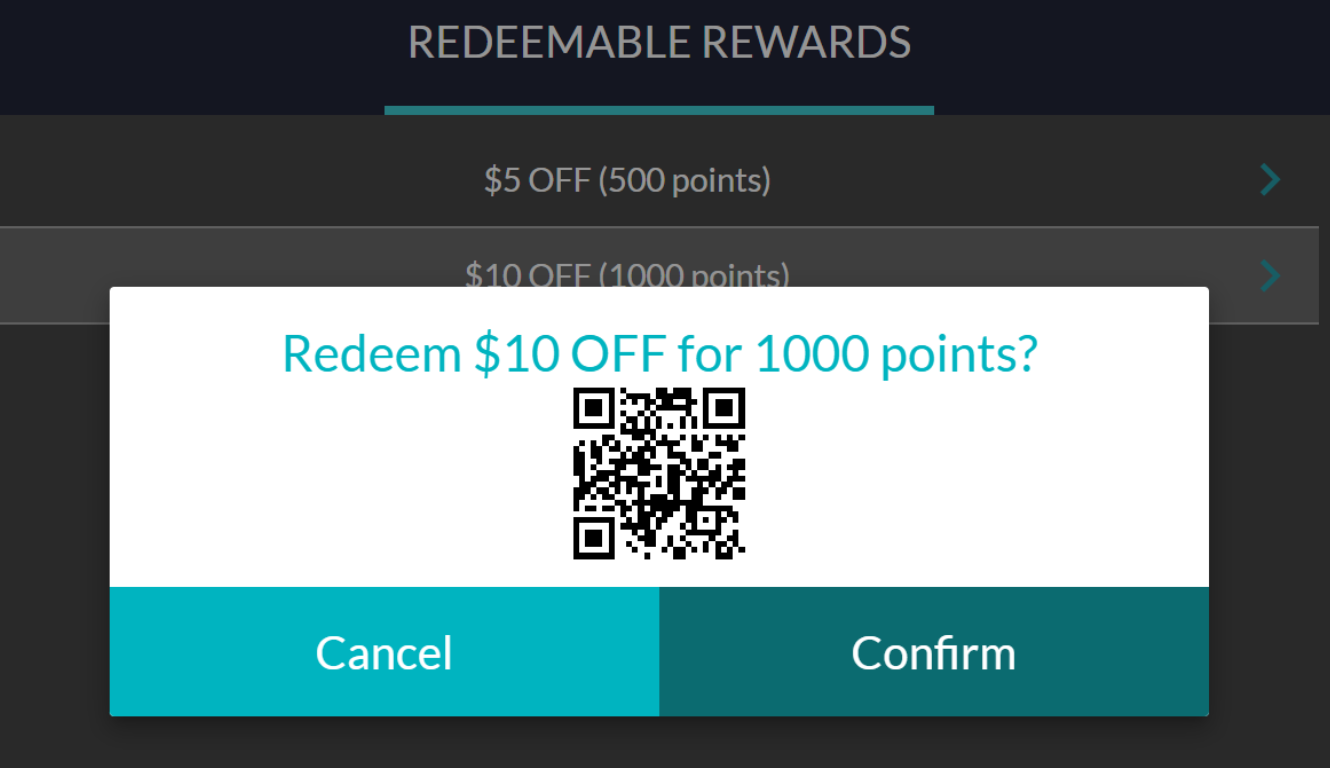
Barcode's allow merchants who do not have a TapMango integration to quickly scan a customers reward and apply the discount value directly to the cart in the POS. This removes the step of having to manually apply a discount yourself.
How Do I Set Up A Barcode?
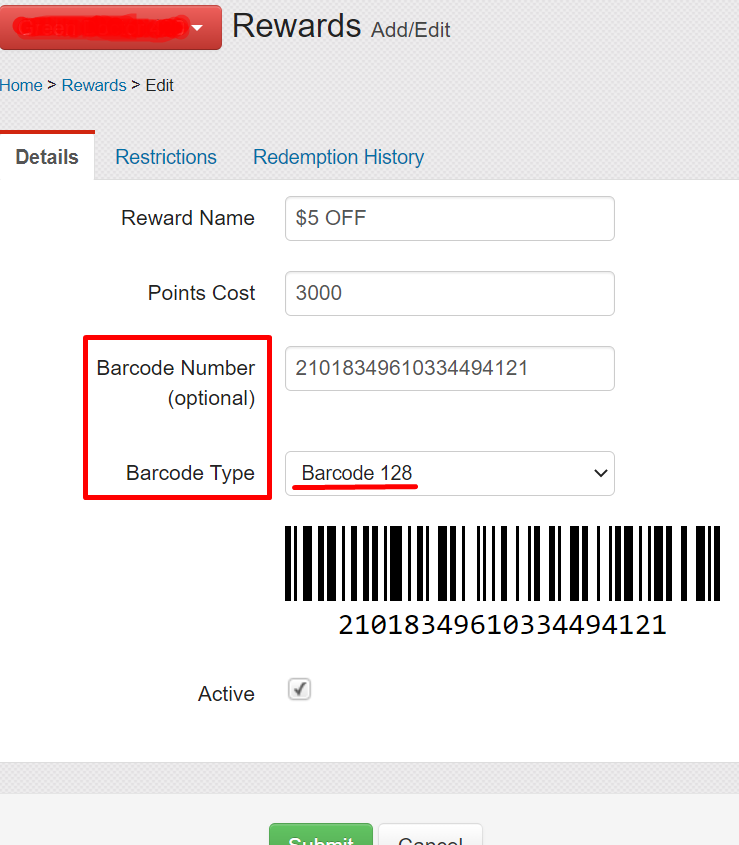
You will first need to assign a Barcode Number to the voucher/reward in Portal.
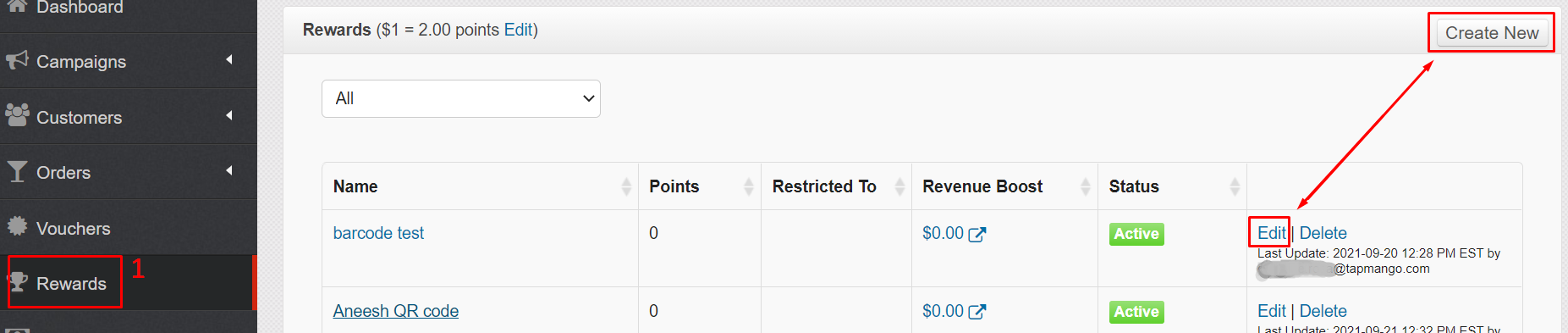
Rewards: Portal > Rewards > Click "Edit" on an existing reward or Click "Create New" > "Details" tab
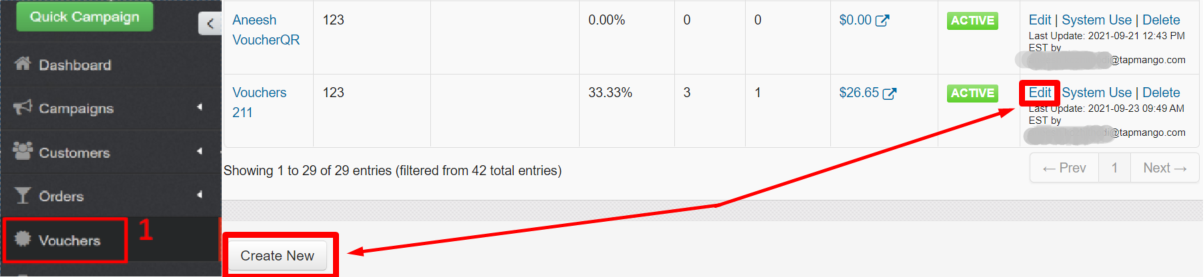
Vouchers: Portal > Vouchers > Click "Edit" on an existing voucher or Click "Create New" > "Advanced" tab
When a value is entered into the "Barcode Number" field, a new "Barcode Type" field will appear with the option to select either QR code or Barcode 128 (Barcode by default). Based on the selected type, a barcode/QR code image will appear under the "Barcode Type" field (see images above).
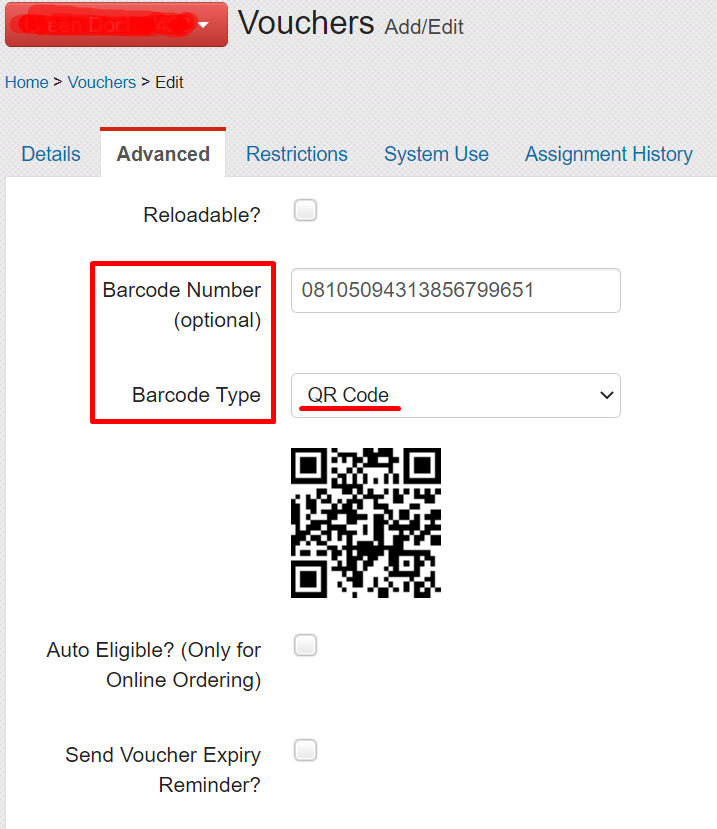
Barcode numbers are generated by the Merchant’s POS and will therefore automatically apply a discount on the POS. Scanning the Barcode DOES NOT redeem the voucher on the customer's TapMango account.
Final Steps
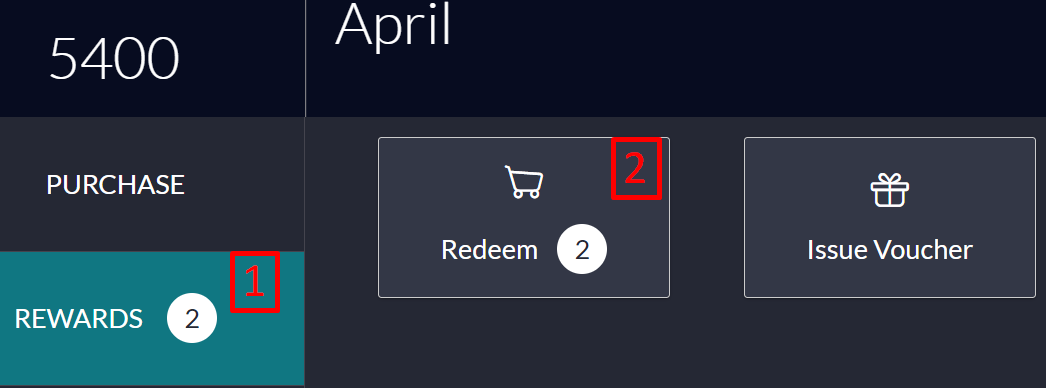
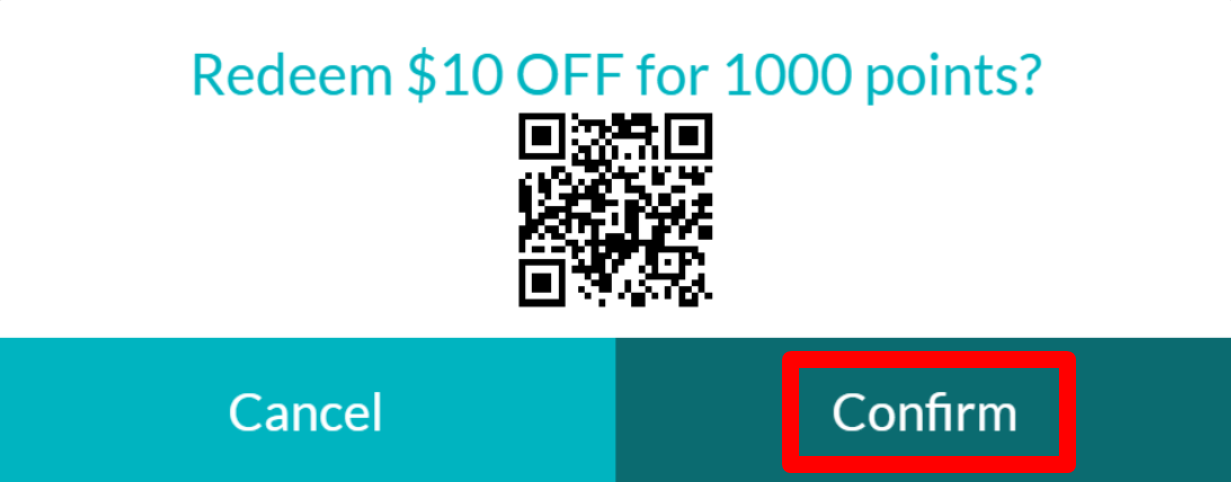
Once the Barcode is created, you will access it on the cashier side of the tablet after a customer profile has been pulled up. Go to Rewards > Redeem and tap on the reward/voucher you want to redeem. The Barcode will be on the discount ready for you to scan.
Once scanned and the discount is applied to the POS cart, the cashier will need to click "Confirm" on the reward/voucher to manually redeem and remove it from the customer's account.
Additional Questions?
As always, if you have any additional questions that isn't covered in this guide do not hesitate to contact us and we'll be happy to help.
Comments
0 comments
Article is closed for comments.